Scanning app
An asset scanning app for iPhone.
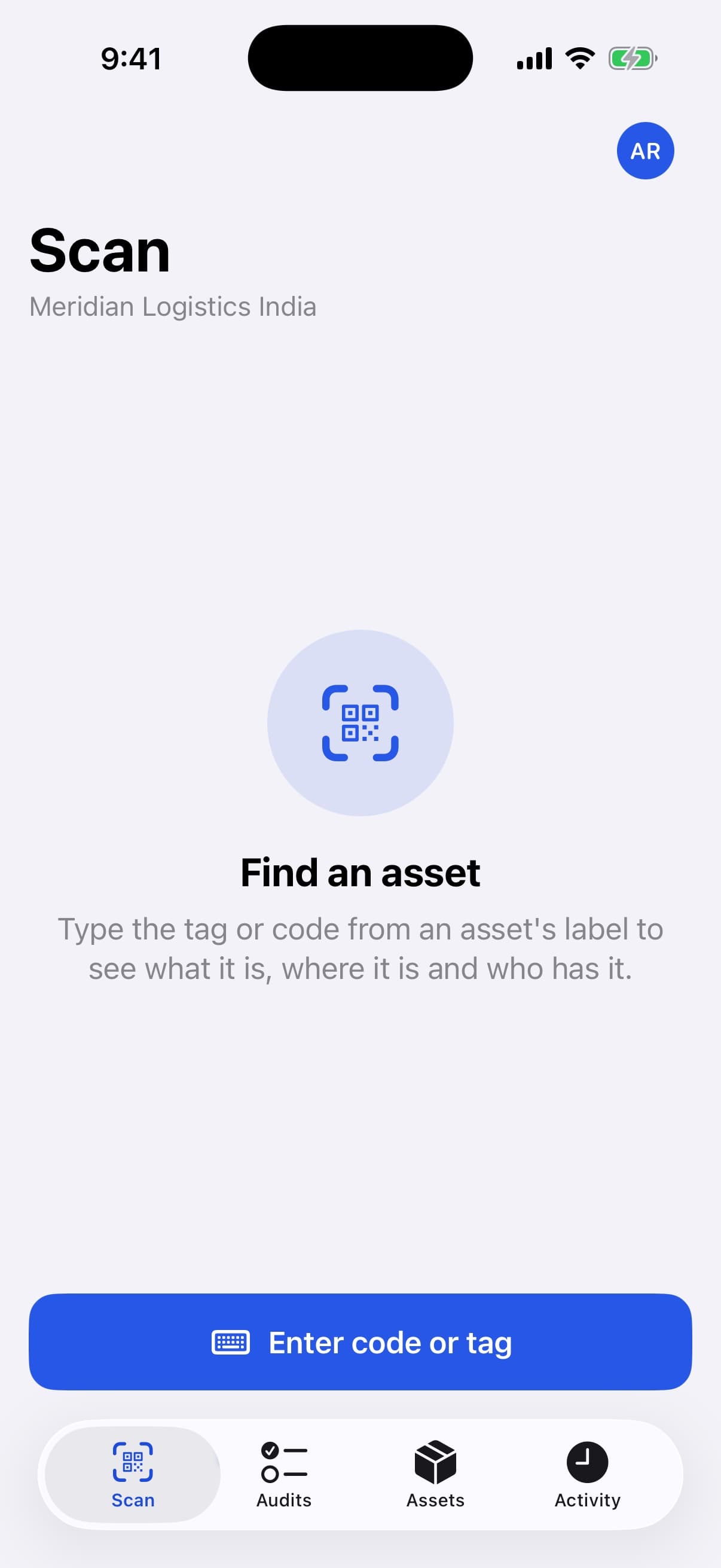
Point the phone at a label and the asset opens. No handheld scanner, no cable, no pairing. Anyone on the team can do it after signing in.
On the asset screen
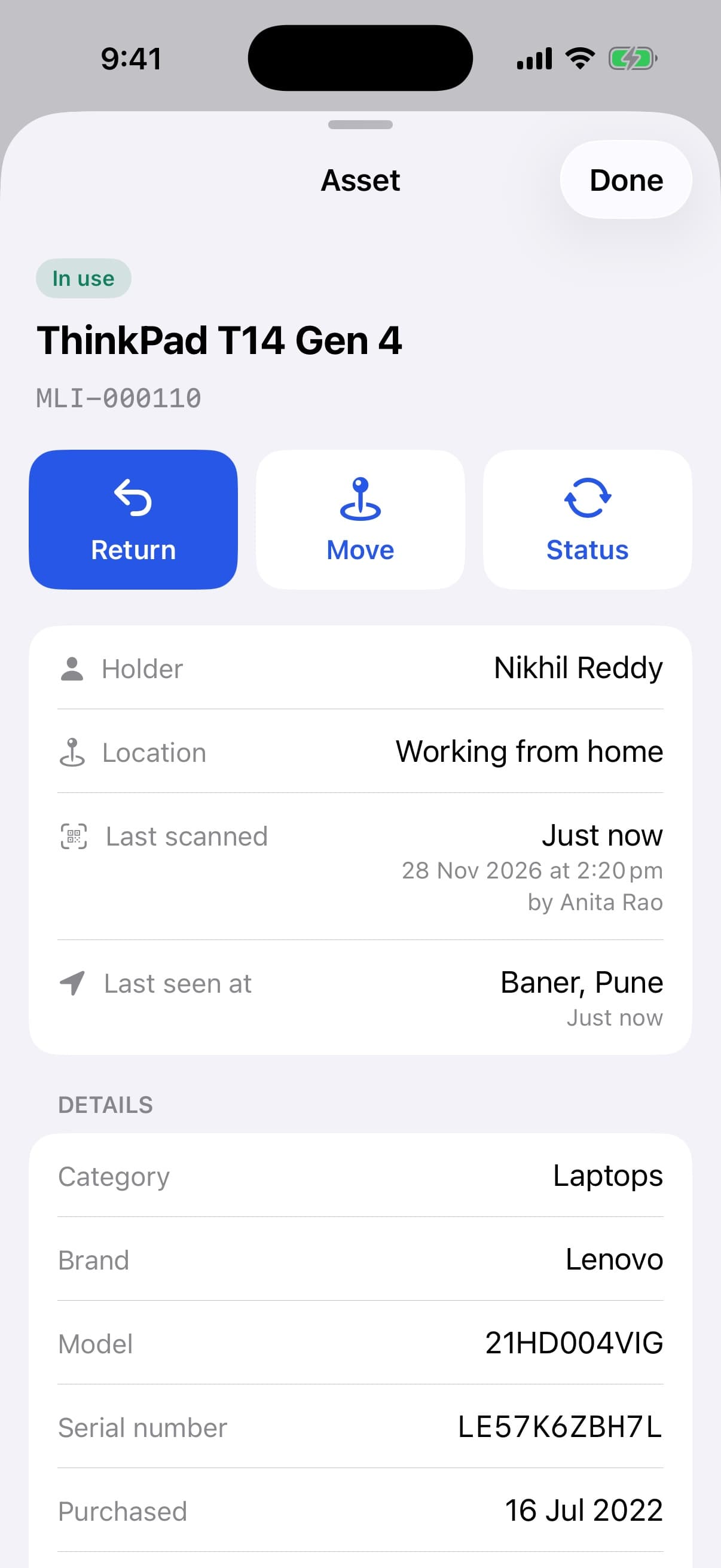
Three actions, each two taps.
- Assign or return
- Pick a person from your list to hand an asset over. Return takes it back. Stock moves into use and back by itself.
- Move
- Pick the new floor, room or site. The move is written to the asset's history with your name.
- Change status
- In use, in stock, in repair, retired or missing, with an optional note such as the service centre it went to.
- History
- The same record the dashboard shows: who scanned it, who held it and when it moved.
Audit mode
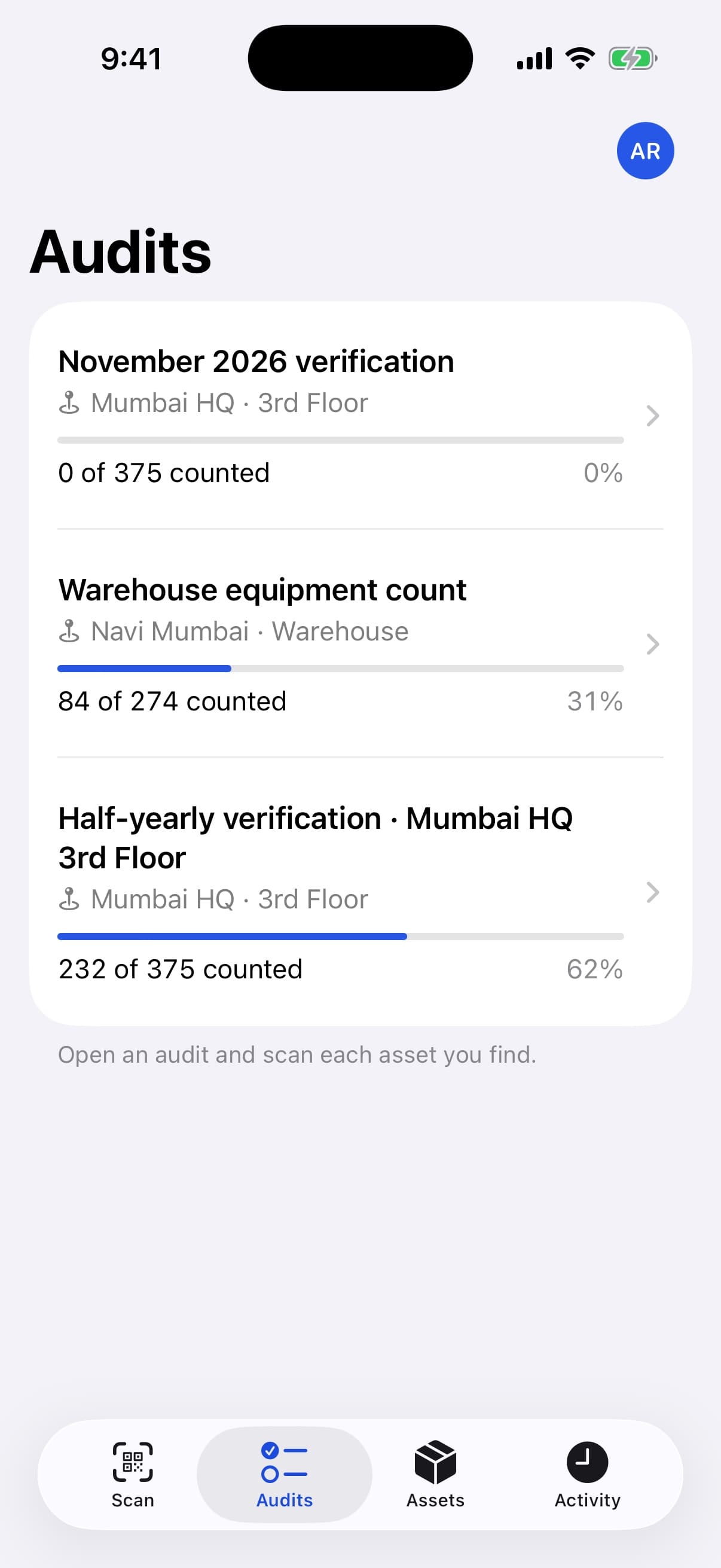
Count a floor by walking it.
Open an audit on the phone and start scanning. Each label counts once, however many times it is scanned. A running total shows how many are found and how many remain.
If you scan something that is not on the audit's list, the app says so. That is how an asset in the wrong room gets noticed.
Practical details
Built for the person doing the walking.
- Damaged label
- Type the tag printed beside the code, such as MLI-000110 or just MLI110. The asset opens the same way.
- Search
- Find an asset by name, tag or holder without scanning, and filter by status.
- Your activity
- A list of what you scanned and changed today, in case someone asks.
- Lost phone
- Sign out everywhere from the dashboard, or have an admin remove the person. The phone is disconnected at once.
Without a desk, without the app
Add an asset from the phone, or scan from a browser.
- Add an asset in the app
- Owners and admins tap + on the Assets tab and name the asset. It is in the register at once.
- Scan from a browser
- The dashboard has a Scan page that runs in a phone's browser, with nothing to install. It shows the asset, takes a typed tag where there is no camera, and counts into an audit.
- What the browser page does not do
- It does not record the place of a scan, and it has not yet been tried on a real Android phone.
- Labels printed in advance are coming
- Packs whose labels belong to no asset yet. Scan one, name the asset, and the label is its own. They are not on sale yet.
Lite plan and above
The place of each scan, if you turn it on.
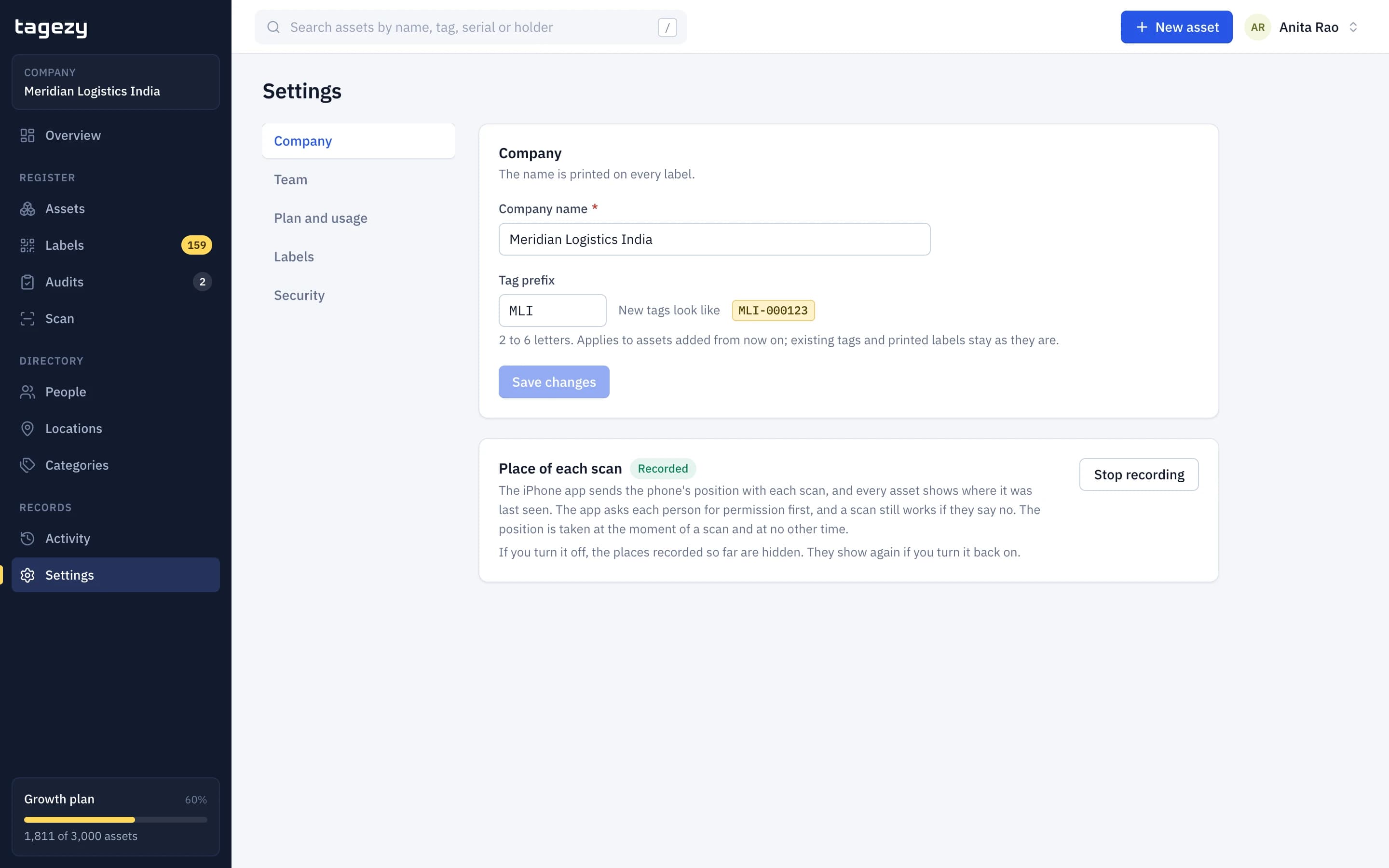
An owner or admin can turn on Place of each scan in Settings. From then the app sends the phone's position with each scan, and every asset shows where it was last seen.
The app asks each person for permission first, and a scan still works if they say no. The position is taken at the moment of a scan and at no other time.
Questions buyers ask
Does the app record where a scan happened?
Only if your company turns it on. Geo-tagged scans are part of the Lite plan and above, and stay off until an owner or admin turns on Place of each scan. The app then asks each person for permission and reads the phone's position only while a scan screen is open.
Do we need to buy barcode scanners?
No. The app uses the iPhone camera. A dedicated scanner is faster only when someone scans thousands of items a day at a fixed station, which is rare for office assets.
Is there an Android app?
There is no Android app. A phone without the app can scan from the dashboard's Scan page in its browser, with nothing to install. That page has not yet been tried on a real Android phone, and it does not record the place of a scan. The dashboard itself works in any browser, so anyone can search, edit and report.
Can several people scan at the same time?
Yes. Each person signs in on their own phone. During an audit, every scan updates the same count, and the dashboard shows who found what.
Who can change what from the phone?
Any signed-in team member can scan, assign, return, move and change status. Adding, deleting, importing and exporting assets are for admins and are done in the dashboard.
How do people sign in on the phone?
With their work email and a six-digit code sent to it. If they have turned on two-step sign-in, the app then asks for the code from their authenticator app.
See it with your own asset list
Send us a spreadsheet of 20 assets. We will import it, print the labels and walk you through a scan and an audit on a call.